Update GIMP on Windows, Mac and Linux
Update the installed GIMP copy through its existing channel, keep XCF and resource backups, and verify the version and an editable project before removing the old app.
To update GIMP, use the channel that installed your copy: the Windows installer or Microsoft Store, the Mac DMG, or the same Linux package manager. GIMP's own update check finds a release; it doesn't install it. I'd keep the same channel for a routine update because two installations can leave you opening the older one. Save your XCF work and back up personal resources before replacing the application, especially when moving from 2.10 to 3.
Check the running version and installation channel
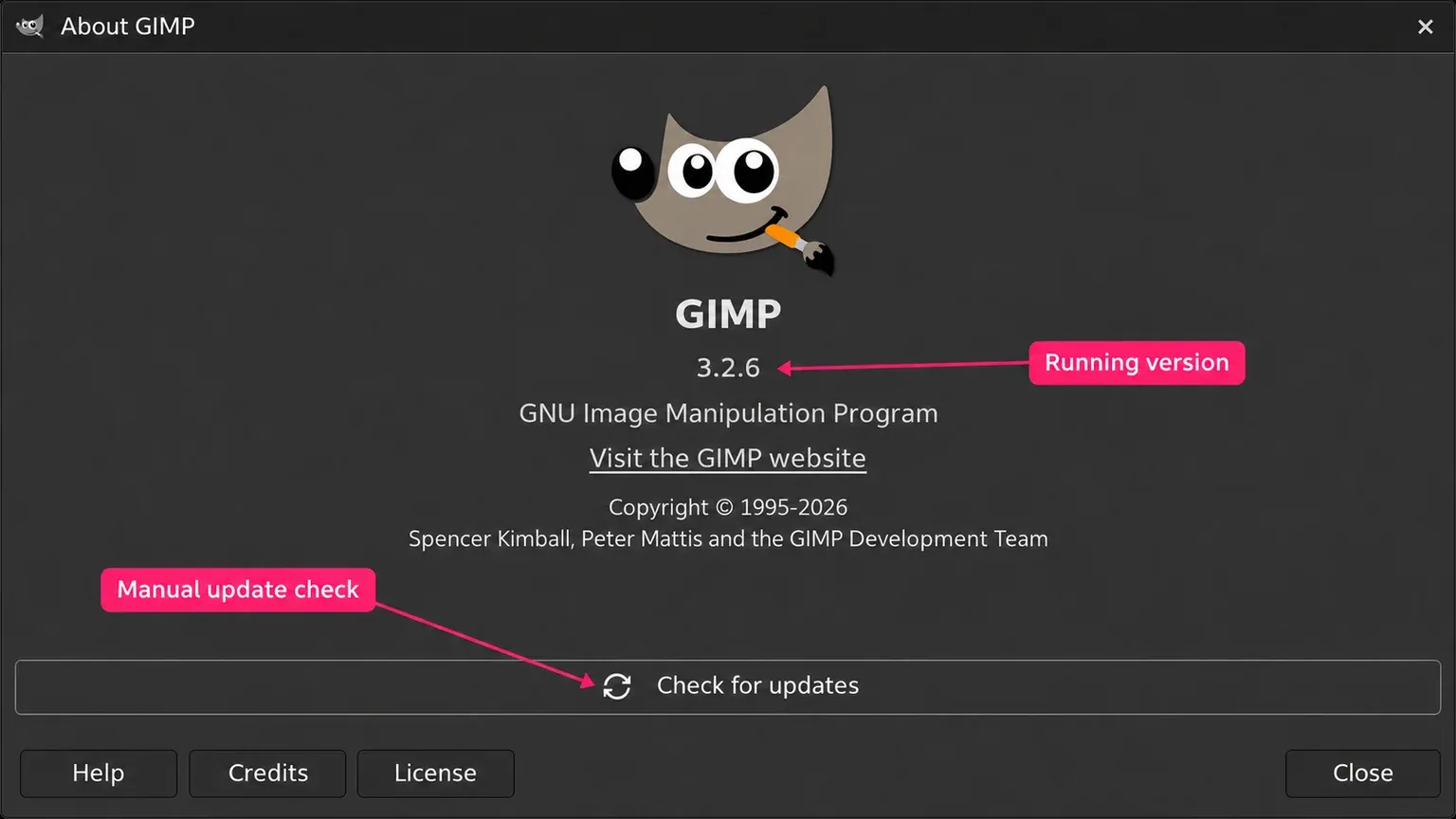
Open Help > About on Windows or Linux, or GIMP > About GIMP on a Mac. The About dialog shows the version running. Write that number down, then compare it with the official stable download listing, which currently offers GIMP 3.2.8. A search result or an old download site's version number can lag behind that listing.
Use Check for updates if your About dialog offers it. When a newer release is known, the button can take you to its download. The official AppImage, Windows universal installer and macOS packages can check for releases no more than once a week; that check isn't a background installer. Store and repository packages have their own update mechanisms.
Choose the row that matches how this copy arrived. If you can't remember, inspect the application in your Store or package manager before downloading another one.
| Existing copy | Update through | Check afterwards |
|---|---|---|
| Windows EXE installer | The current Windows installer from gimp.org | Start GIMP 3 explicitly and read Help > About |
| Microsoft Store | Downloads or Library in Microsoft Store | The Store update has finished, then GIMP's About version |
| Mac DMG | A matching Intel or Apple Silicon DMG | The copy in Applications, after ejecting the DMG |
| Homebrew cask | The installed gimp cask | Homebrew's result and the launched application's About version |
| Linux Flatpak or Snap | That package manager, with GIMP named | The installed scope/channel and the copy it launches |
| Linux distribution package | Your distribution's package manager | Installed versus available repository version |
| Linux AppImage | A new compatible AppImage file | The new file, rather than a launcher pointing to the old one |
Protect the project and its resources first
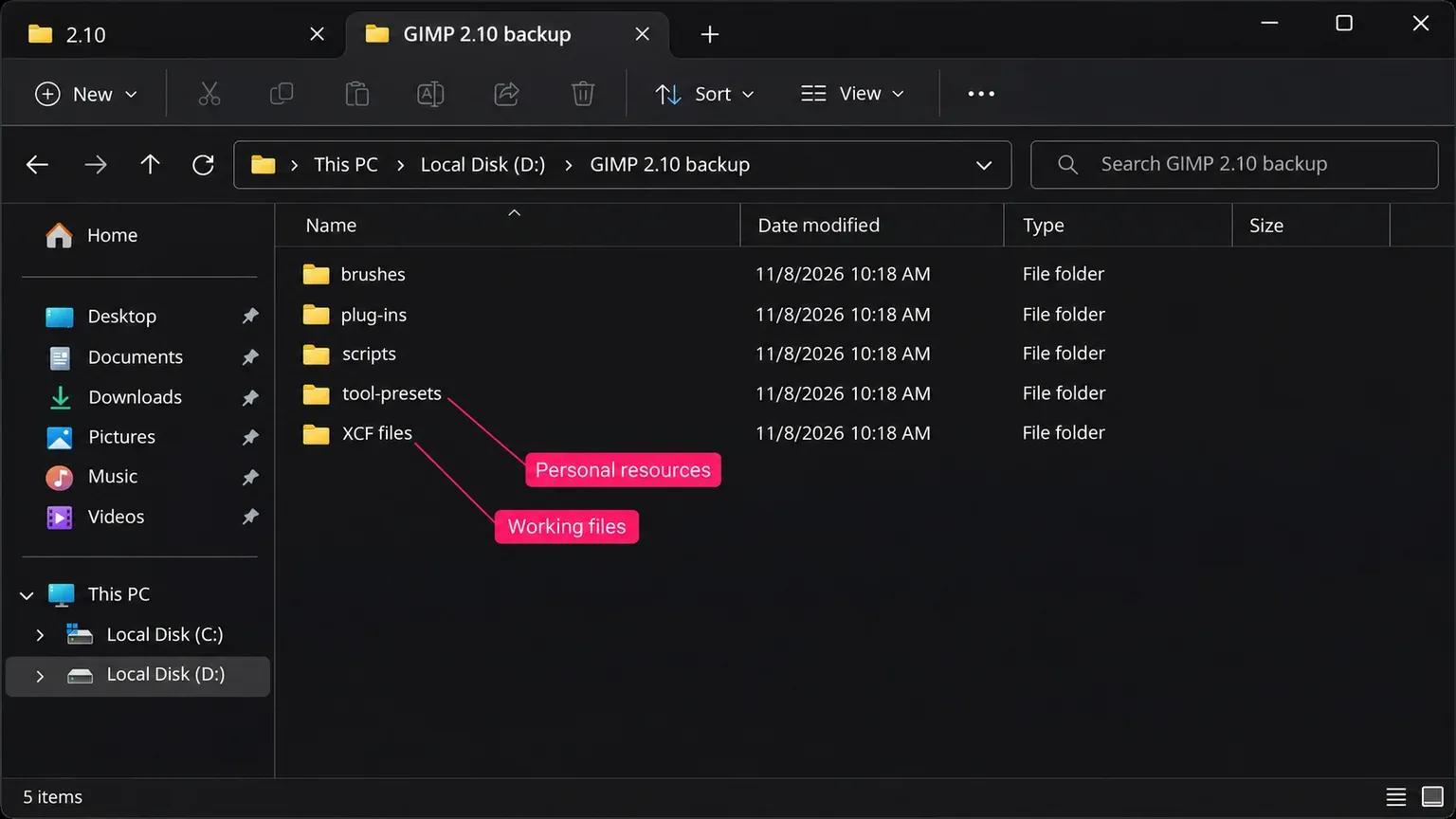
Save open work, close GIMP, and copy important XCF files to a separate location. A finished JPEG or PNG doesn't replace the layered working file: GIMP's Save and Export commands serve different purposes. Keep an untouched project copy for the old installation and a second copy for checking the update.
Back up your personal brushes, patterns, gradients, palettes, presets, scripts and plug-in packages. Include any external folders you've added, not just the default profile. In the old copy, inspect Edit > Preferences > Folders, or the GIMP application menu's Settings/Preferences > Folders on macOS. The resource-folder lists distinguish personal and supplied locations. Record your own paths before quitting, then copy those resources with the application closed.
Keep the original plug-in downloads and installation instructions too. A folder of old executables is a backup, not a guarantee that those executables will work in a new major version. Don't delete a profile or uninstall the old major release just to make room for its replacement before these checks.
Separate a patch update from a move to GIMP 3
A 3.2.x patch update, such as 3.2.6 to 3.2.8, uses the same 3.2 profile. It replaces the application without needing you to copy every brush into a new version folder. Keep the backup until you've reopened a working document and checked the resources you rely on.
Moving from 3.0 to 3.2 creates a new versioned profile when one doesn't already exist. GIMP's profile-migration code copies eligible settings and resources from an older profile it finds, including 3.0 plug-ins and scripts. It skips custom themes and saved tool options. The plug-in API is stable across the GIMP 3 series, so 3.0 plug-ins don't face the 2.10-to-3 API break. A particular binary can still need the right operating system, architecture and dependencies.
Moving from 2.10 to 3 is the larger change. The migration deliberately skips old plug-ins and scripts directories; the new API and Python 3 support mean that copying a Python 2 script or an old executable doesn't port it. Obtain compatible GIMP 3 plug-ins individually. Custom themes also need a compatible replacement. Keyboard shortcuts from the old menurc file are converted to shortcutsrc, so inspect the result before rebuilding them by hand.
Automatic migration is a first-start operation for a new profile. If you used GIMP 3.2 before adding a brush to 2.10, don't expect the next patch update to import that brush again. Check the updated copy's resource paths and restore the missing compatible item from your backup. If a resource is still missing, confirm that its folder is listed in the updated copy's Preferences and that the item supports GIMP 3 before copying it again. Keep the original profile and backup intact.
Update GIMP on Windows
An installer-based copy
- Save your work and quit GIMP. Open gimp.org's download page and select Microsoft Windows.
- Check the requirements before downloading. The current universal installer supports x86_64 and ARM64 Windows, with a Windows 10 version 1903-or-newer baseline. The Microsoft Store listing has a different baseline: Windows 11 or at least Windows Server 2022, build 20348.
- Download the EXE and compare its SHA-256 with the value beside that exact filename on gimp.org. In PowerShell, the Get-FileHash command calculates the file's hash. For the current installer, run this from its Downloads folder:
Get-FileHash .\gimp-3.2.8-setup.exe -Algorithm SHA256If the filename changes, change the command too. A match checks that the downloaded bytes match the published file; it isn't a reason to ignore a security warning. If the values differ, stop and download the correct file again.
- Run the verified installer and follow its prompts. Don't remove your personal data folders as an extra installation step.
- Open the new GIMP 3 entry from Start, then check Help > About. Check an old desktop or taskbar shortcut separately before relying on it.
GIMP 2.10 and GIMP 3 can coexist. A reported update that still opened 2.10 illustrates the launcher problem: downloading GIMP 3 doesn't make every old shortcut launch it. Keep the older copy until your documents and replacement plug-ins work in the intended one.
A Microsoft Store copy
Open Microsoft Store > Downloads, or Library in a layout that uses that label, check for updates and apply the GIMP update if offered. Microsoft confirms that Store apps update automatically and can be updated manually. Let the update finish before reopening GIMP. Downloading an EXE instead switches you to a separate installation route.
32-bit Windows is a stopping point. GIMP 3.2.0 was the last official 32-bit Windows release; 3.2.2 and later no longer provide it. The old 32-bit TWAIN scanning plug-in was dropped too. Don't force a 64-bit installer onto 32-bit Windows or mistake a missing scanner plug-in for a failed update; use the scanner manufacturer's software to capture an image, then open that image in GIMP.
Update GIMP on a Mac
For a DMG installation, choose the build for your Mac's processor: Apple Silicon/ARM64 for an Apple chip, or Intel/x86_64 for an Intel processor. About This Mac identifies the chip or processor. The current official packages require macOS 11 Big Sur or newer; the GIMP team doesn't publish an Apple App Store package.
- Save your projects, make the resource backup and quit GIMP. Keep a copy of the existing app if you need to return to it.
- Download the matching DMG from gimp.org. Compare its SHA-256 with the value for that exact file. The shasum utility's 256-bit option can check it in Terminal; for the current Apple Silicon package:
shasum -a 256 ~/Downloads/gimp-3.2.8-arm64.dmg- Open the DMG and drag GIMP into Applications, confirming replacement of the intended copy. Apple's installation instructions explain how to open a downloaded disk image; follow the GIMP disk image's copy-to-Applications step.
- Eject the mounted DMG. Open GIMP from Applications, then read its About version. A copy left in Downloads or on the mounted image is easy to confuse with the installed app.
If Homebrew installed your copy, keep that route. Check it with brew list --cask gimp, refresh Homebrew's package information with brew update, and preview the named upgrade with brew upgrade --cask --greedy --dry-run gimp. Then use brew upgrade --cask --greedy gimp if the offered version is the one you want. Homebrew's named-cask upgrade and greedy options avoid skipping a cask marked as auto-updating; the command can still update dependencies or clean old packages. A DMG-only user doesn't need to install Homebrew to update GIMP.
Update the GIMP package installed on Linux
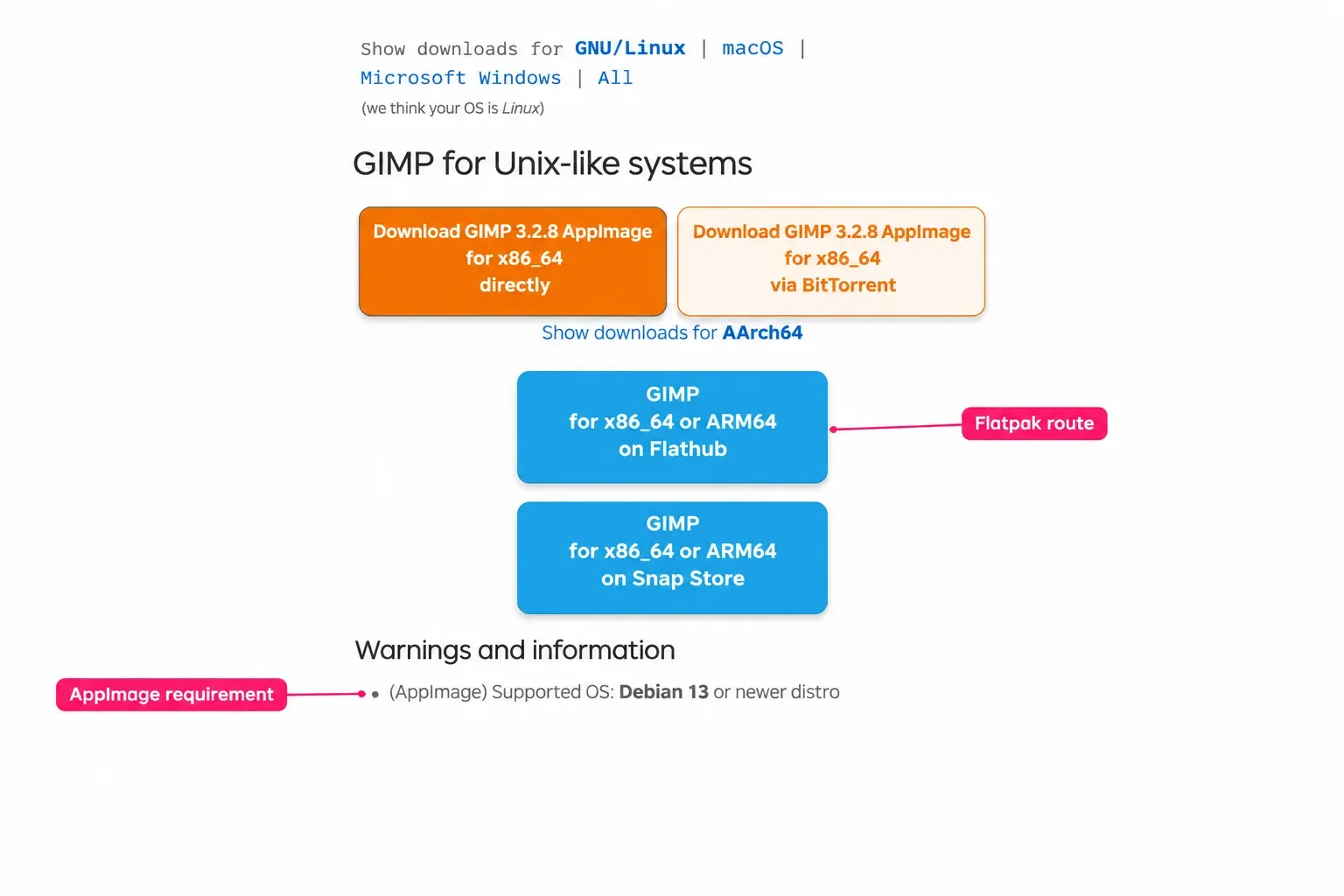
On Linux, updating one package doesn't update a copy installed by another manager. I'd identify the package before choosing a command, especially on a desktop with more than one GIMP icon. The Linux installation guide covers choosing a different channel; changing channels is a separate decision from bringing the existing one up to date.
Flatpak: name GIMP and the installation scope
List the installed applications, including their branch and installation scope:
flatpak list --app --columns=application,version,branch,installationFind org.gimp.GIMP. For a per-user installation on the stable branch, use:
flatpak --user update org.gimp.GIMP//stable
flatpak --user run org.gimp.GIMP//stable
For the default system-wide installation, use --system in place of --user. A named additional system installation uses --installation=NAME, with its actual configured name. The Flatpak update reference explains scope and branch matching. Review the proposed runtime and extension changes before accepting: naming GIMP limits the application request, but required dependencies can still change. Plain flatpak update updates everything, and leaving out a branch can match multiple installed branches.
Our Chromebook Linux route uses a per-user Flatpak. Run its update inside the Chromebook's Linux terminal, then launch that same Flatpak and check About.
Snap: stay on the intended channel
Use snap list gimp to inspect the installed version and tracking channel. Snaps update automatically; sudo snap refresh gimp requests a refresh of the named package. The Snap commands distinguish refresh from a channel switch. Don't move to edge or beta merely because an old tutorial calls it the newest version.
Ubuntu or Debian: compare Installed and Candidate
For an APT-installed copy, refresh repository metadata and inspect what's available:
sudo apt update
apt policy gimp
The policy output shows the installed and candidate versions. If they're equal, that repository has no newer candidate for your setup; rerunning the command won't turn it into the version on gimp.org. Check which repository supplies Candidate before proceeding, especially if you previously added a PPA.
When the candidate is the upgrade you want, preview the transaction, then apply it:
apt-get --simulate install --only-upgrade gimp
sudo apt-get install --only-upgrade gimp
The simulation makes no changes and only-upgrade targets an already installed package. Review dependency and removal lines as well as GIMP's version, and read the real transaction's prompt again: repository state can change after a simulation. You don't need a system-wide apt upgrade, an old PPA recipe, or an uninstall-and-reinstall sequence just to request this package's update.
For Fedora or another distribution, use its own package manager. A different repository release is a packaging decision, not proof that the update failed. If you need a newer GIMP than the repository supplies, compare supported channels before installing another copy.
AppImage: replace the file and check the launcher
Download the new AppImage for your architecture, check its published SHA-256, and follow the AppImage executable-permission and launch steps. The current GIMP AppImage listing requires Debian 13 or a newer distribution. An AppImage isn't a way around that baseline.
Launch the new file directly and verify its About version before changing a shortcut to point to it. Keep the old file until the new one works with a copied project. Renaming or downloading a new AppImage doesn't update a launcher that still points to the previous filename.
If the update still looks wrong
| What you see | What to check next |
|---|---|
| About still shows the old version | Start the new application directly. Compare it with the pinned shortcut, mounted DMG, old AppImage or second package-manager copy. |
| The package manager says nothing needs updating | Check the installed branch/scope or repository candidate. The channel may not offer the gimp.org release yet. |
| The installer won't run | Compare the package's OS and processor requirements with your device, and verify the exact file hash. Don't bypass a security warning as an update step. |
| A brush, shortcut or plug-in is missing | Check the new profile's resource paths and the migration rules above. Restore compatible personal items; reinstall a GIMP 3 build of an old plug-in. |
| GIMP starts but freezes or crashes | Record the exact build, channel, OS and failing action. Check current release fixes, then isolate an added resource or plug-in on a copied project. |
The 3.2.8 release notes identify specific fixes, including a Windows canvas-movement freeze after opening multiple images and a blank interface on some Macs. Those are reasons to try the relevant update, not promises that every freeze has the same cause. If GIMP won't start far enough to inspect Preferences, keep the profile and project backups intact. Note the exact downloaded build, installation channel, operating system and error message, then follow GIMP's bug-reporting steps to describe the failure. A screenshot of the error and the last action before it appeared will help; deleting the profile first can remove useful diagnostic information.
Verify an edit before retiring the old copy
Open the copied XCF in the intended updated application. Inspect the layers, masks, text, colours and transparency that matter to the project. Use File > Save As to save a separate XCF, close it and reopen it. Export a small deliverable in your usual format and inspect that file too.
For a plug-in, follow its compatible package's installation instructions, restart GIMP and search for its documented command under Help > Search and Run a Command, or press /. GIMP's command search can locate installed plug-in actions; test the action on the copied picture. The plug-in installation checks handle missing commands and wrong resource paths.
Once the new copy opens your work, keeps it editable and runs the resources you need, update the shortcut you use. Keep the project and resource backups. Remove an older application only after deciding you no longer need its version-specific tools.

Elena Morris
Elena Morris is the GIMP image-editing and compositing editor at TheGIMP.net. She writes about selections, masks and layers, restrained retouching, compositing and export.