Can GIMP open PSD files? Layers, text and export
GIMP opens PSD and PSB files, but live Photoshop objects need checking. Preserve the received original, keep an XCF working copy and verify the separate PSD handoff.
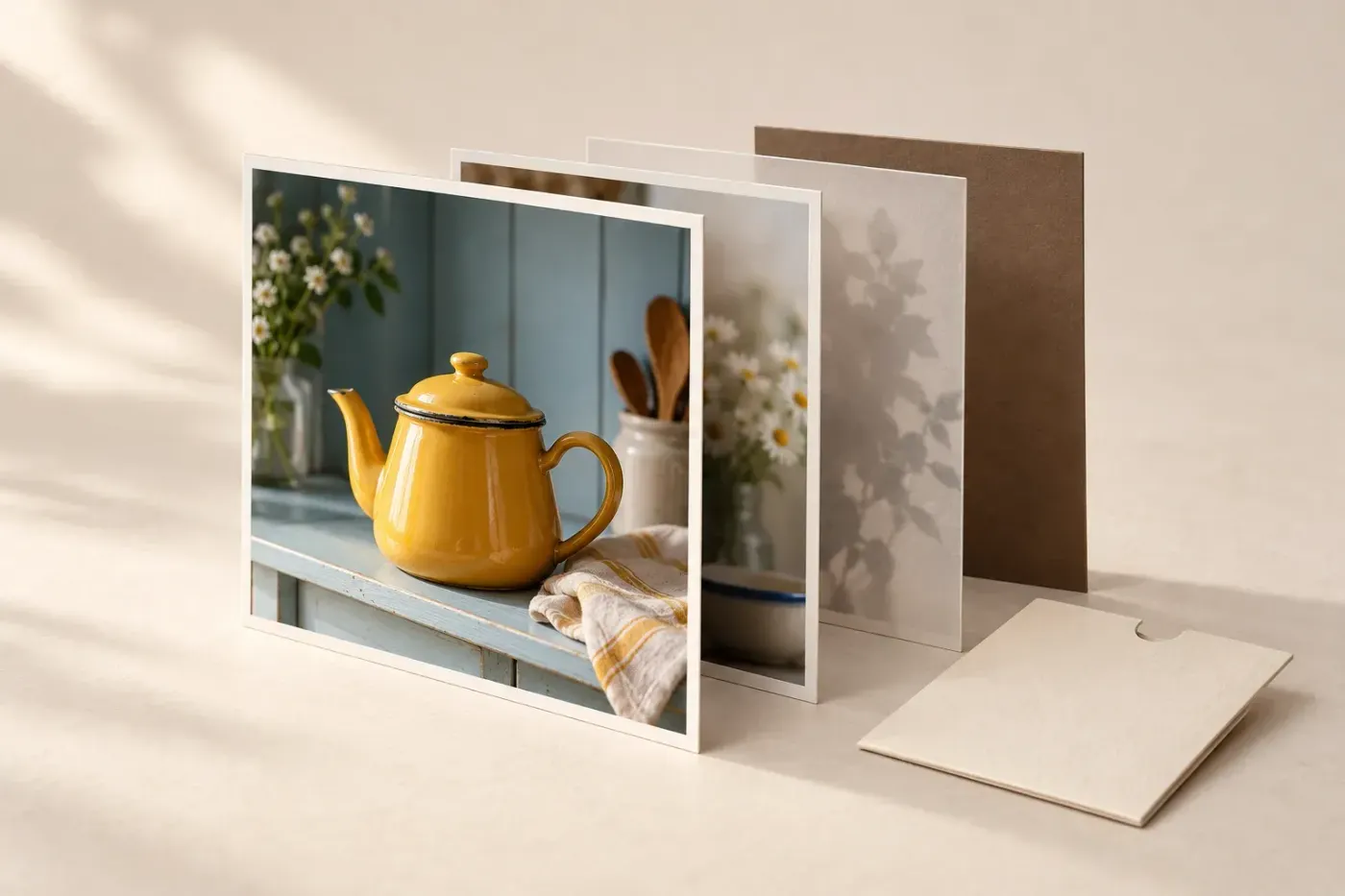
Yes, GIMP can open PSD files: choose File > Open… and select the Photoshop document. You can edit supported pixel layers and masks, but Photoshop text becomes pixels and unsupported adjustment layers or Smart Objects can appear as empty layers. I'd keep the received PSD untouched and save an XCF working copy, because a successful import doesn't prove that the original editing controls survived. If you only need the finished picture, GIMP also has a separate merged-image import that can read the composite saved inside the PSD.
The instructions below use GIMP 3.2. Its PSD improvements include more imported layer styles and PSB export; advice written for GIMP 2.8 or 2.10 can give the wrong answer about current support.
Decide what you need from the PSD
A document can contain both a layered project and a stored composite of its visible appearance. Those serve different purposes. Decide whether the next job is changing an individual object, recovering an archived picture, or continuing a Photoshop template before choosing an import route.
| Your next task | Start here | Check before continuing |
|---|---|---|
| Retouch a photograph on a separate pixel layer | Normal layered import, then save XCF | The relevant layer, mask and composite look right |
| Print or export the finished image from an old project | Try a separate merged import if the layered version looks wrong | A composite exists and matches the intended image |
| Change a template's words or embedded design | Inspect its text and Smart Objects first | Ask the sender to make the change or supply editable elements if GIMP cannot retain those controls |
| Return an editable file to a Photoshop user | Keep XCF and export a new PSD | The recipient verifies the specific layers and controls they need |
For example, resizing an archived poster for a print can work from a correct composite. Replacing its headline requires editable lettering or a deliberate rebuild. Saving the composite as PSD doesn't recreate the headline's original text object.
Open the PSD and check it before editing
- Keep the original. Make a working copy of the received PSD. Ask the sender for a PNG or JPEG of the intended result alongside it, particularly for templates and composites.
- Open it in GIMP. Choose File > Open…, select the copy, leave Select File Type at Automatically Detected, and click Open. PSD support is included in GIMP's file plug-in; you don't need to download a separate PSD converter.
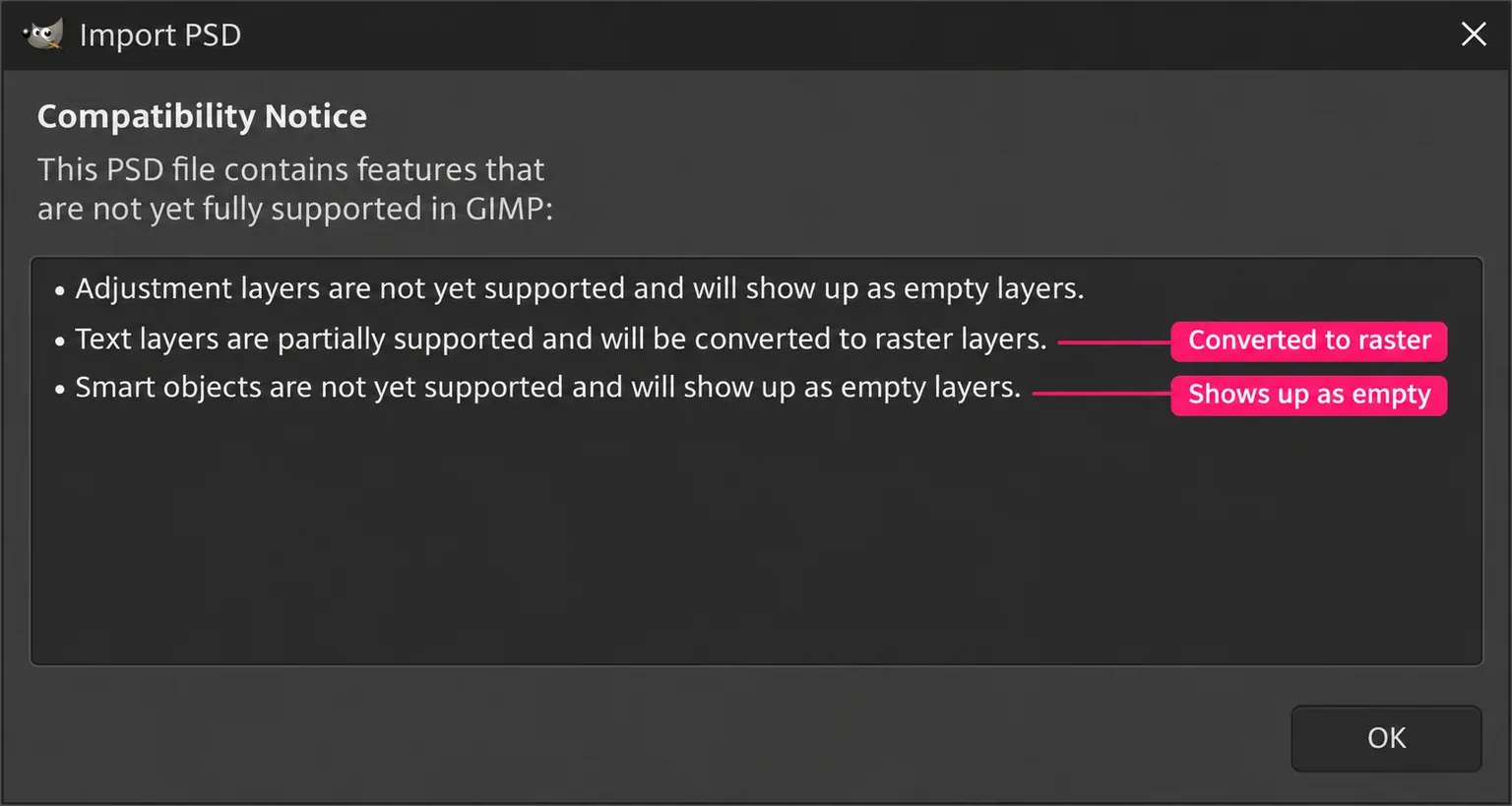
- Read the import notice. A Compatibility Notice identifies detected features that GIMP cannot fully interpret. Note which ones affect the part you intend to change.
- Handle an embedded RGB profile deliberately. If GIMP offers to keep that profile or convert the image to its working space, I'd keep the embedded profile for the initial inspection. Its colour-management preferences support both choices. Keep the same choice for the layered and merged copies so the comparison is consistent; CMYK import has the separate conversion limits explained below.
- Compare the whole picture and its edges. Check lettering, shadows, overall colour, object positions and transparent boundaries against the sender's reference. A plausible thumbnail can conceal missing text or a changed mask.
- Inspect the Layers dock. Expand the relevant groups, toggle a layer's eye icon to identify its contribution, and check its image and mask thumbnails. Restore the intended visibility before saving or exporting.
- Save the working document as XCF. Use File > Save As… and a name such as
poster-working.xcf. XCF preserves the GIMP document you now have; it cannot restore Photoshop information that the import discarded.
For a masked cutout, temporarily hide the layers underneath and inspect the edge over light and dark backgrounds. Select the layer's image thumbnail when you intend to paint pixels; select its mask thumbnail when you intend to change what is visible. Remove temporary test backgrounds and restore the original visibility afterwards.
Which PSD features remain editable in GIMP?
The GIMP 3.2.8 importer and its compatibility messages distinguish ordinary pixel data from partially supported or unsupported Photoshop objects. A familiar layer name in the dock isn't proof that its original controls are available.
| Photoshop content | What to expect | What to do |
|---|---|---|
| Raster layers and raster masks | Layered pixel and mask data are supported | Check order, visibility, mask edges and the rendered result |
| Text layers | Partially supported; converted to raster layers | Rebuild lettering on a GIMP text layer if you need to change the words |
| Adjustment layers | Unsupported adjustments can appear as empty layers | Compare the tone with the reference; request a rendered version or rebuild the adjustment |
| Smart Objects and linked layers | Unsupported objects can appear as empty layers | Request the required element separately or have its author edit the Photoshop original |
| Layer styles | GIMP 3.2 imports more styles, including Drop Shadow, Inner Shadow and Outer Glow | Compare each visible effect; import support doesn't guarantee a live Photoshop effect after export |
| Fill layers and vector masks | Partially supported features can become raster data | Check whether the resulting pixels are sufficient for the edit and output size |
| CMYK pixels | CMYK PSD import is supported, with conversion for GIMP editing | Keep the original and agree on the output profile before a CMYK export |
Why can't I change the words?
Imported Photoshop lettering can look intact while being a pixel layer. Activating GIMP's Text tool with T doesn't turn those pixels back into text. Create replacement lettering on a new GIMP text layer, keep the old layer as a reference, and hide it once the replacement matches. The font and text controls let you adjust the new words in the XCF working document.
Match the line breaks, spacing and position as well as the typeface. If the original lettering covers other artwork on the same pixel layer, cleanly replacing it becomes a retouching task. I'd ask for the change in Photoshop when the exact typography or a recurring template matters; that avoids reconstructing it on every revision.
Do GIMP's own non-destructive features solve PSD compatibility?
No. GIMP 3.2's Link Layers and its adjustment-style workflow are useful native features, but they don't establish import support for every Photoshop object. The release notes describe applying non-destructive filters to a pass-through group to create an adjustment-style workflow. Rebuilding a correction that way is a new GIMP edit, not recovery of the missing Photoshop adjustment's saved controls.
What published PSD tests show
The 29 October 2026 Testy v2 compatibility run tested GIMP 3.2.6 against Photoshop 27.11.0 with 309 small PSD and PSB files from the psd-tools collection. Its opening, rendering and saved-object checks answer separate questions.
| Check | Result |
|---|---|
| Source files opened | 309 of 309 |
| Files within the benchmark's 10% Photoshop-render tolerance | 75 of 309 |
| Mean perceptual render match | 43.2% |
| GIMP-saved PSDs rejected by Photoshop | 0 |
| Photoshop text objects retained as text | 0 of 43 |
| Native adjustment layers / Smart Objects / live effects retained | 0 of 183 / 0 of 172 / 0 of 181 |
This run was published by Patchy's developer. It removes cached pixels for type, shapes, fills and Smart Objects when testing what an editor can render itself, so the score is not a prediction that an ordinary imported picture will look 43.2% correct. The means cover files Photoshop produced a reference for; object counts cover saves it could inspect. These small feature tests measure PSD exchange, not GIMP's general editing quality.
A separate MakeUseOf test of an almost 1 GB panorama reached a practical result: GIMP's layered import lost working adjustments and rasterised the text, while a second, merged import matched the intended printable image. Gregory Gibson tested a 12,229 × 5,052-pixel document on one Windows PC in July 2026. That single-file result explains the value of the two import routes; it doesn't establish a general performance ranking.
I'd use these results as a handoff checklist. Confirm appearance, then confirm editability separately. Neither a file opening nor Photoshop accepting a resaved copy proves that the recipient can still change its text, embedded design or effects.
Open the saved composite when the layers look wrong
GIMP's file-type selector can explicitly load the merged Photoshop image, if the PSD contains one. This reads a stored view of the finished image instead of reconstructing its appearance from the editable layer stack.
- Keep the layered document open and choose File > Open… again.
- Select the untouched PSD or its unedited working copy.
- Expand Select File Type at the bottom of the dialog.
- Choose Photoshop image (merged) and click Open.
- Compare this separate image with the sender's reference. Check the whole image, lettering and output dimensions before using it for a print or export.
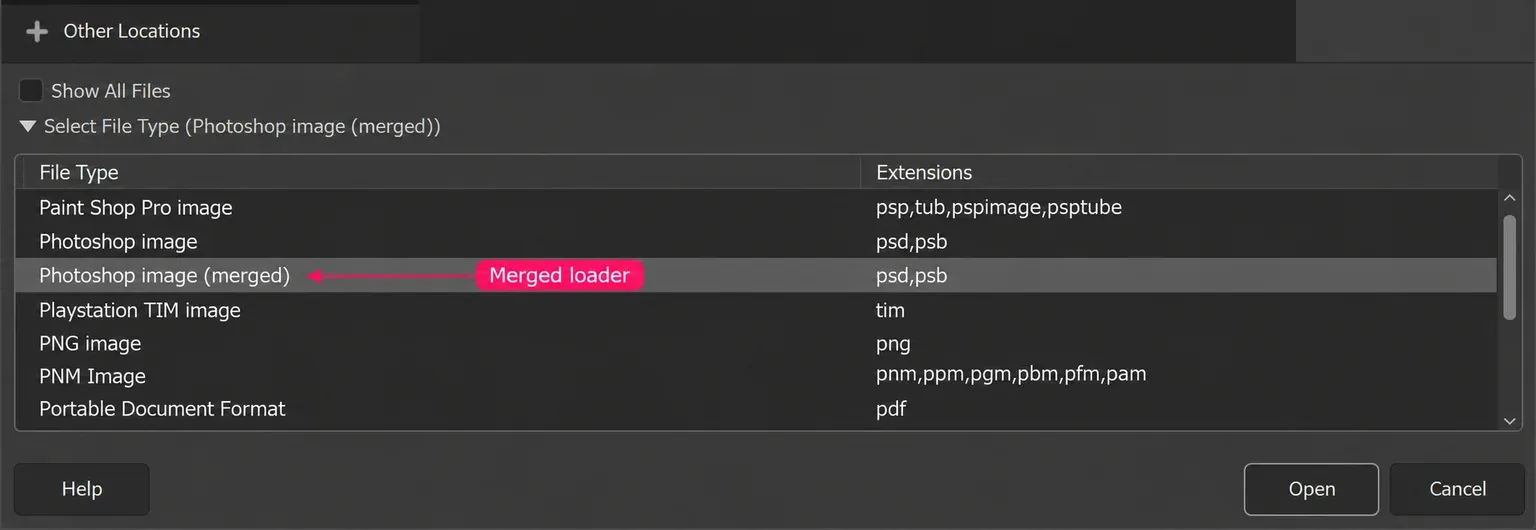
The merged image doesn't restore editable text, adjustments or individual objects. Use it as a reference alongside the layered XCF, or as the starting point when only the composed pixels are needed. Return Select File Type to Automatically Detected for the next normal layered import.
If the composite is absent or wrong, ask the sender to save a new copy with Maximize PSD and PSB File Compatibility enabled in Photoshop's File Handling preferences, or to send a separate full-resolution PNG or TIFF of the intended result. Enabling that setting on a future save supplies a composite; it doesn't repair a missing one inside the old file.
If you need one object separately, request that element as well. You can open the supplied image as a new layer in the XCF, preserving it separately from the imported content. A flat PNG is useful for appearance and transparency, but isn't a replacement for a whole editable PSD stack.
If GIMP won't open the PSD, narrow down the failure
First distinguish an import that finishes with a different-looking image from an import that fails or stalls. Missing shadows after opening belong to the compatibility checks above. A read error, unsupported colour mode or application freeze needs a different next step.
The file is missing from the Open dialog
Check that the download has finished and select the actual document, rather than an archive containing it or an online placeholder. The Open dialog's Show All Files option reveals files hidden by its filter. Leave Automatically Detected selected unless you intentionally want the merged loader. Renaming a JPEG or an incomplete download to .psd doesn't convert it.
Only this PSD fails, while other images open
Obtain a fresh copy and ask whether the sender can still open the original. If it opens there, request a new PSD saved under a different name, a full-resolution reference, and the colour mode and bit depth. This separates an incomplete transfer from a document feature GIMP cannot read.
For an Unsupported color mode message, the details matter. The 3.2.8 importer accepts CMYK and Lab PSD data at 8 or 16 bits per channel; those modes at 32 bits are rejected by that check. For a screen-image task, ask for a separately saved RGB copy at an agreed precision. For print work, get the printer's requirements before changing the mode or precision. Keep the higher-precision original.
A separate merged import is also worth trying when the stored composite is sufficient. It is a recovery option for appearance, not a guarantee that a damaged file can be read.
A large document appears to hang
Close other large images and check available RAM and disk space. The PSD's size on disk doesn't describe all the memory its layers and working data require. GIMP's System Resources preferences control Tile cache size; when the image data exceeds that allocation, GIMP starts swapping to disk and can slow sharply.
Inspect resource use before changing the cache. Assigning all RAM to GIMP can starve the operating system and other applications. I wouldn't copy a fixed memory percentage from an old forum post: choose a value that leaves room for the work running on that computer. If only one PSD repeatedly stalls, retain its version, dimensions, mode and depth as diagnostic details.
The problem persists on a current build
Use a current stable GIMP maintenance release before following an old rollback workaround; the GIMP update guide covers keeping your installation current. If many ordinary images fail too, the problem extends beyond one PSD: record that pattern when seeking support.
For a reproducible single-file defect, give the GIMP issue tracker the exact GIMP version, operating system, error text, image dimensions, colour mode, bit depth and whether normal or merged import fails. Include a reduced, non-confidential example if you can create one. Don't put a private design or a client's document in a public report.
Export a separate PSD and verify it with the recipient
Save the GIMP project before making an exchange file. Use names that distinguish the three jobs: poster-original.psd, poster-working.xcf and poster-for-photoshop.psd. Photoshop cannot use XCF as its native working document, and GIMP's Save command is reserved for XCF.
- Confirm the intended appearance. Restore layer visibility and remove temporary inspection fills. Keep useful layers and masks separate if the recipient needs them.
- Save XCF. This remains your editable GIMP master.
- Choose File > Export As…. Enter a new filename ending in
.psd, or select Photoshop image as the file type. Avoid replacing the received original. - Review the export options. Choose the required profile and metadata settings, then export.
- Send a reference image with it. Ask the recipient to open the PSD in their target application and verify both the finished picture and the exact parts that must remain editable.
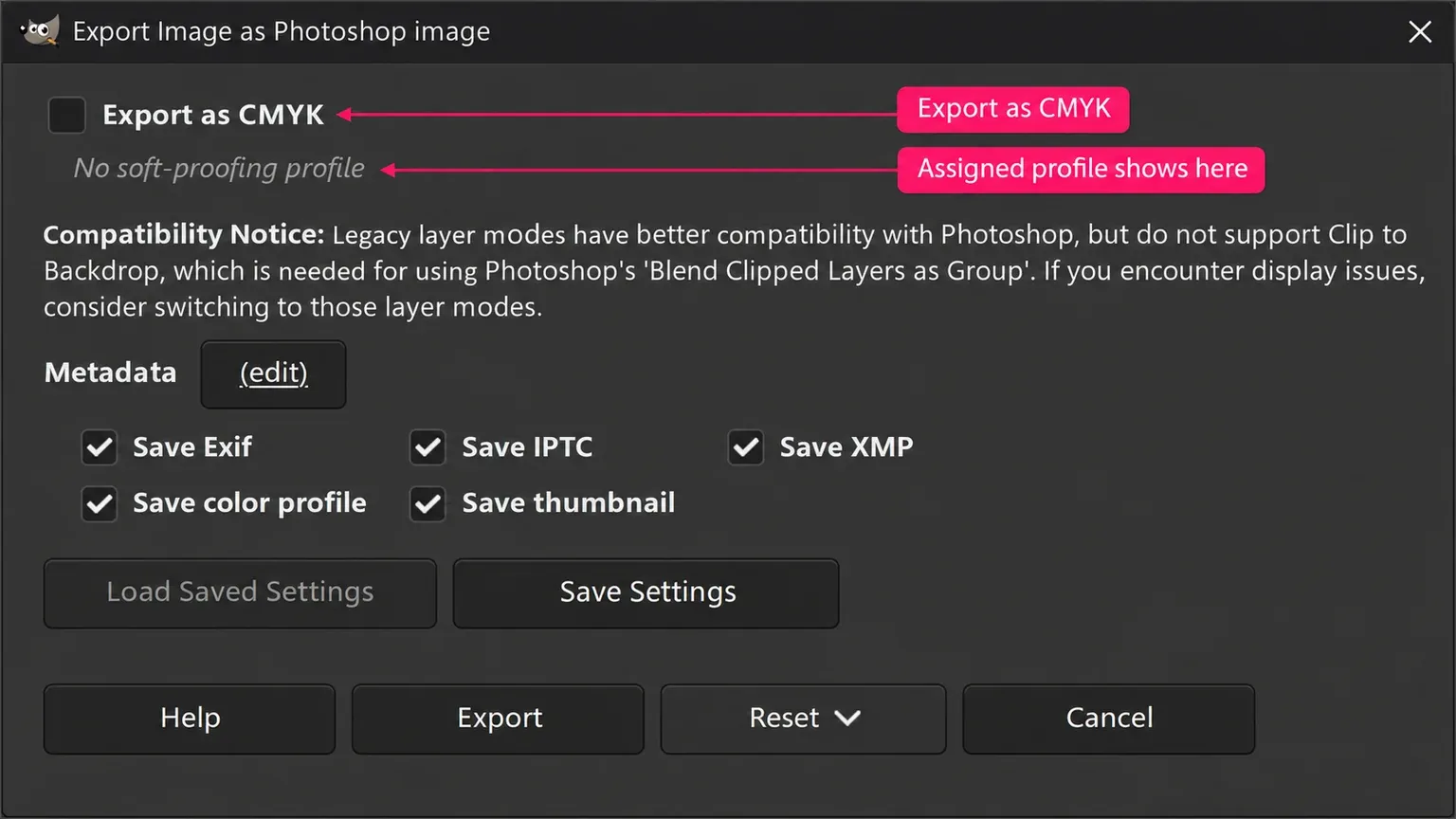
The PSD export dialog includes Save color profile, EXIF, IPTC, XMP and thumbnail options. Opening the metadata editor through (edit) doesn't itself enable metadata saving. When removing metadata, check the thumbnail option too: the manual notes that it can retain certain EXIF tags even when EXIF saving is disabled.
For a recurring handoff, agree on a small representative file before moving a whole project. Ask the recipient to change a word, adjust the mask and inspect a critical shadow, rather than merely confirm that the PSD opens. A successful round trip for simple pixel layers doesn't establish one for a template built around Smart Objects.
Check blend modes and effects after export
Not every GIMP blend mode has an exact Photoshop equivalent. The PSD export manual says legacy modes are closer for many blends, but they don't support choosing a composite mode. Photoshop's Blend Clipped Layers as Group corresponds to GIMP's Clip to Backdrop, which needs a non-legacy mode. Change a suspect blend deliberately and compare the result; don't switch the entire document to legacy modes as a blanket fix.
Check shadows, glows, translucent overlaps and group boundaries in the recipient's application. If a particular effect cannot survive the exchange, agree whether its rendered appearance on a separate pixel layer is acceptable. Keep the version with editable GIMP controls in XCF.
CMYK and large PSB files need an agreed output
GIMP 3 supports CMYK PSD import and export. Its importer converts CMYK pixels for editing; opening a print document doesn't make GIMP a native CMYK Photoshop workspace. A correct-looking screen preview alone isn't approval of the exported print file.
For CMYK delivery, get the required profile from the printer. Choose Image > Color Management > Soft-Proof Profile… and assign that CMYK profile. In the PSD export dialog, Export as CMYK becomes available when a suitable CMYK soft-proof profile is assigned; its name appears below the option. If the option is disabled, check the assigned profile before exporting.
GIMP has imported PSB, Photoshop's large-document format, since 3.0; 3.2 adds export. Use it when the document and recipient require that format, and check that their target application supports it. Renaming .psd to .psb doesn't perform a conversion or solve an unsupported layer type.
My handoff rule is simple: keep the untouched Photoshop original, keep the GIMP work in XCF, and send a separately checked exchange copy. If the next revision depends on live Photoshop text, adjustments or Smart Objects, arrange that work in Photoshop or deliberately rebuild those elements before promising an editable deliverable.

Elena Morris
Elena Morris is the GIMP image-editing and compositing editor at TheGIMP.net. She writes about selections, masks and layers, restrained retouching, compositing and export.