GIMP alternatives: free and paid image editors by task
Choose by the task: Paint.NET or Pinta for photo fixes, Krita for painting, Inkscape for SVG, Photopea in a browser, Affinity or Pixelmator Pro, and Photoshop for native PSD work.
For a free replacement for layered photo editing, I'd shortlist Affinity on Windows, Mac or iPad, provided a Canva account is acceptable. Choose Photopea for PSD work in a browser, Paint.NET or Pinta for simpler desktop edits, and Krita for painting. If open source is essential, start with Pinta, PhotoDemon, Krita or Inkscape according to the task. Keep the original XCF: choosing another editor and transferring an editable project are two separate decisions.
The deciding detail is often small. A crop tool must accept the ratio you need; a caption must remain text after a transform; a mask must still hide the right edge when another person opens the file. I'd choose around that operation before comparing a whole page of feature names.
Choose a GIMP alternative by the work you need to finish
Use the shortlist to pick one candidate, then read its limitation before moving a project. Here, free means that the stated editing tools can be used without buying a licence; a paid trial is kept in the paid group. Free proprietary software and open-source software are different choices.
| Your main task | My shortlist | Device and cost boundary | Check before switching |
|---|---|---|---|
| Layered photo corrections and composites | Affinity | Windows, macOS, iPadOS; core studios free with a Canva account | New .af files can't be reopened in older Affinity V2 |
| A layered PSD without installing an editor | Photopea | Browser; free with advertisements, optional Premium | Inspect text, masks and Smart Objects in the actual exchange file |
| Straightforward Windows edits | Paint.NET or PhotoDemon | Windows; free downloads, PhotoDemon is open source and portable | Paint.NET hardware requirements; imported project editability |
| Simple native Linux edits | Pinta | Linux, macOS, Windows and BSD; free and open source | Your required selection, text and crop operations |
| Painting, brushwork and drawn animation | Krita | Free desktop builds for Windows, macOS and Linux | Keep KRA for the painting; PSD exchange has limits |
| Logos, typography and editable SVG | Inkscape | Windows, macOS and Linux; free and open source | A placed photograph remains a raster image |
| Developing and organising camera photos | darktable | Windows, macOS and Linux; free and open source | RAW development is a different job from layered compositing |
| An Apple-focused paid photo editor | Pixelmator Pro | Supported Mac/iPad; purchase and subscription routes differ | OS, iPad chip and the features included in your licence |
| A workflow that requires Photoshop itself | Photoshop | Subscription; desktop, web and mobile plan options | Which application, plan and PSD features the recipient requires |
Affinity: my first shortlist for a complete photo-and-design workspace
Affinity makes sense when the missing piece is a coherent workspace for a composite, its type and the layout around it. The current application brings Pixel, Vector and Layout tools into one free app with a Canva account. It is proprietary software, so it doesn't meet a requirement for an open-source editor even though the core tools cost nothing.
I'd choose it over a small paint editor when the project includes several masked images, repeated tonal adjustments and text that will change later. The advantage is having those parts in the same working document. It doesn't remove the need to learn how the destination handles clipping, blending and masks, and opening an XCF or PSD somewhere is never evidence that every original object survived.
There are two boundaries worth checking immediately. Canva AI tools require a premium Canva plan; the free editing studios don't. Also, current desktop and iPad Affinity use the same .af files, but files saved in the new application can't be opened in V2. Keep an older original if another person still uses V2 rather than replacing their only working copy.
The current Affinity iPad app is a real option for touch and Apple Pencil work, with Pixel, Vector and Layout studios plus Sketch Studio. Its launch omissions include Batch, macro recording, Books and Data Merge. If automation is the reason for leaving GIMP, that desktop-to-iPad difference matters more than a shared file extension. The Affinity vs GIMP comparison covers that choice in more detail.
Photopea: the browser choice when PSD structure matters
Photopea is my first browser candidate for a layered image that needs text, masks or Smart Objects. It runs on your device in a web browser; ordinary local-file editing doesn't mean uploading the picture to a processing server. Its own guidance recommends a large screen, a precise pointer and a keyboard, which is a more useful expectation than assuming any phone or inexpensive Chromebook will be comfortable with a large composite.
Photopea's free editing tier is available to everybody; Premium removes advertisements and can include other benefits. I'd try the free editing route with a representative file before paying to remove the ads. No-install access solves the installation problem, but it doesn't guarantee that a document will fit comfortably within a device's memory.
Use File > Save as PSD for the working document and File > Export As for a delivery image. Saving only a PNG leaves letters as pixels, so the next person can't simply change the wording. For incoming Photoshop documents, compare the result with a reference and inspect the objects that must remain editable; the dated compatibility results below show why that extra step is necessary.
A browser can also be the practical route on a managed computer where installation is blocked. For the separate device decision, see GIMP on Chromebook. For the file itself, opening PSD files in GIMP explains what to inspect before and after an exchange.
Paint.NET, Pinta and PhotoDemon: make ordinary edits simpler
If the whole job is cropping or correcting one photograph, try the editor already available before moving to another suite. Microsoft Photos can crop, rotate and adjust light and colour; open the picture and choose Edit image (Ctrl + E). You don't need a new layered workspace for every finished photograph.
For phone photo edits, I'd shortlist Snapseed: Google's listings offer free exposure and colour controls, selective adjustments, cropping and rotation for Android and iPhone and iPad. Use it for the photograph you want to finish, while retaining the desktop master for work that depends on its layer structure.
Paint.NET for Windows corrections and small layered pictures
Paint.NET is a sensible shortlist when you need layers, Curves, Levels and several open images, without moving into a full photo-and-layout suite. I'd consider it for an image assembled from a few photographs and corrections, then check the exact text operation before making it the home of a caption-heavy project.
The official download page offers free and paid routes. Its current baseline includes Windows 10 version 21H2 or newer, Windows 11 or Windows Server 2022; a 64-bit processor with at least four cores; AVX2 for Intel/AMD x64, or ARM64; and Direct3D 11 graphics. A simpler interface doesn't automatically make the current build suitable for an old PC.
For a flat handoff, export a separate PNG from GIMP, open it in Paint.NET and use File > Save As to create a PDN working file. PDN can retain the layers you create there. The PNG has already rendered the original XCF's text and effects into pixels, so keep the XCF if those parts still need editing. GIMP vs Paint.NET separates those workflow limits.
Pinta for a smaller native editor, including Linux
Pinta is free and open source on Linux, Mac, Windows and BSD. I'd shortlist it when cropping, rotating, resizing and a few adjustments account for most of the work. A native Linux application also avoids making Wine or a browser a condition of every edit.
Try the operation that currently frustrates you before transferring a collection of projects. For example, make the crop or selection with the required aspect ratio, change some text, resize the picture and save a separate working copy. If an essential control is missing or an operation destroys something you must revise, a smaller tool set hasn't solved the problem. This is a more reliable selection method than choosing whichever application looks least crowded in a screenshot.
PhotoDemon for portable, open-source Windows editing
PhotoDemon is a free, portable, open-source Windows photo editor with layers, selections, paint tools, content-aware operations, a macro recorder and a batch processor. The maintainer states that it doesn't require installation, administrator rights or internet access. That makes it a concrete candidate when a portable local editor is the requirement.
It also lists PSD and XCF support, but I'd treat that as a reason to check an existing project, not a promise that GIMP or Photoshop objects remain native. In particular, don't read a broad claim about previews or Undo as proof that every operation is permanently non-destructive. If the project relies on revisiting an effect a week later, save, close and reopen a copy to confirm the part you need.
Krita for painting; Inkscape for editable vector artwork
Krita is the stronger fit when the next task is drawing: its brush engines, stroke stabilisers, drawing assistants and animation tools are built around that work. I'd move a painting there before trying to make a photo editor's brush controls stand in for a painting workspace. Keep a KRA working file, which preserves Krita's supported features, and make a separate exchange copy when another editor needs the image.
The desktop download is free for Windows, macOS and Linux; paid store versions are a separate distribution route. Krita doesn't support iPad or iPhone. Its Android listing remains a beta aimed at tablets and Chromebooks, not a general phone recommendation. The difference between a drawing workflow and a retouching workflow is covered in Krita vs GIMP.
Choose Inkscape when the deliverable is a logo, diagram, lettering or another piece of SVG artwork whose paths and type need to remain editable. It's free and open source on Windows, macOS and Linux. A photograph placed inside an SVG is still a raster photograph; placing it there doesn't turn its texture or original GIMP layers into editable curves.
GIMP 3.2 has vector layers and SVG/PDF export containing raster and vector information, so “GIMP has no vector support” is an outdated reason to leave. I'd choose Inkscape for a document centred on vector drawing and typography, while keeping GIMP for the pixel correction that feeds it. Inkscape vs GIMP explains that division without pretending the applications do the same job.
For RAW photos, add a developer before replacing the image editor
If the problem is sorting camera photographs, developing RAW files or applying a consistent correction across a set, start with darktable. It provides non-destructive RAW processing, collection filtering and colour-managed export on Windows, macOS and Linux. Its editing settings are stored through a database and XMP sidecars while the original images remain unchanged.
That solves a different stage from cutting out a person, rebuilding an edge or combining several photographs into a composite. I'd develop the RAW image first, export a suitable rendered file for the pixel edit and retain the RAW plus its development settings. darktable supports TIFF export, including 16-bit TIFF, when the next stage needs more tonal precision than an ordinary 8-bit delivery image.
A TIFF sent to GIMP is a rendered image; it doesn't bring the RAW developer's full adjustment history into GIMP. Keep both stages rather than overwriting one to imitate a single-app workflow. There's no need to move an established RAW workflow merely because a comparison list names another application.
When Pixelmator Pro or Photoshop justifies paying
Pixelmator Pro is worth considering for an Apple-focused workflow that needs non-destructive image adjustments, selections, retouching and vector work in one editor. Apple's US offer distinguishes a US$49.99 one-time Mac purchase from Apple Creator Studio, which costs US$12.99 a month or US$129 a year after the initial 30-day trial for new subscribers. The subscription renews automatically until cancelled.
The iPad version is part of Creator Studio; the Mac purchase doesn't include it. Pixelmator Pro requires macOS 26 or iPadOS 26, and the iPad needs an M1 chip or later, iPad (A16), or iPad mini (A17 Pro). The Creator Studio version includes the Warp Tool. Check that entitlement and the device before choosing between the purchase and subscription, especially if one particular control is the reason for moving.
I'd pay for Photoshop when the workflow requires the actual Photoshop application, its automation or a recipient's native PSD editing process. That is a stronger reason than a blanket claim that every photograph needs Photoshop. Adobe lists the US individual Photoshop plan at US$22.99 per month, annual billed monthly; this is an annual commitment, not a month-to-month price. A trial is temporary access and converts to a paid membership unless cancelled.
Confirm whether the recipient needs desktop Photoshop, a specific plug-in or just an editable PSD. Those are different requirements, and paying for a plan won't repair a document whose type or masks were already flattened during an earlier conversion. The full choice is in GIMP vs Photoshop.
What published PSD results say about keeping a project editable
A file can look convincing while its text or Smart Objects have become pixels. The Patchy project's Testy benchmark from 29 October 2026 checks those separately: it compares rendering against Photoshop and inspects objects in PSDs saved by other editors. The corpus contains 309 small, mostly single-feature PSD/PSB files.
| Tested editor | Text objects retained in inspectable saves | Smart Objects retained |
|---|---|---|
| Photopea, web build in Chrome | 43 / 43 | 168 / 172 |
| Krita 5.3.4.1 | 12 / 12 | 0 / 172 |
| GIMP 3.2.6 | 0 / 43 | 0 / 172 |
| PhotoDemon 2026.01.0251, Testy CLI build | 0 / 43 | 0 / 172 |
These are results from one published harness, produced by another editor's project, with tested builds and installed fonts held to its conditions. Denominators cover the saves Photoshop could inspect, so Krita's 12/12 is a smaller surviving set than Photopea's 43/43. PhotoDemon used a locally patched test-only command-line build. The numbers support checking Photopea for this particular exchange task; they don't rank general retouching, brush quality, current releases, large real-world documents or editing speed.
My practical conclusion is to test the required editable object, not merely whether the file opens. If you must change the words in a title or replace the source inside a Smart Object, perform that operation in an exchange copy, save it and have the recipient reopen it. A correctly rendered preview proves far less than that round trip.
Move a project without discarding its editable master
Keep an untouched XCF before exporting anything. GIMP stores editable layer effects in XCF and merges them when exporting to another format. An exchange format can preserve useful structure without reproducing every GIMP setting.
- Choose one representative project. Use a copy containing the elements you really depend on: text, a difficult mask edge, blend modes, a colour correction and any linked image. A flat photograph can't establish how a layered composite will travel.
- Save the original and a visual reference. Keep the XCF, source assets and fonts you are permitted to use. Export a separate PNG or other suitable reference so you can compare the appearance after import without confusing that reference with the editable project.
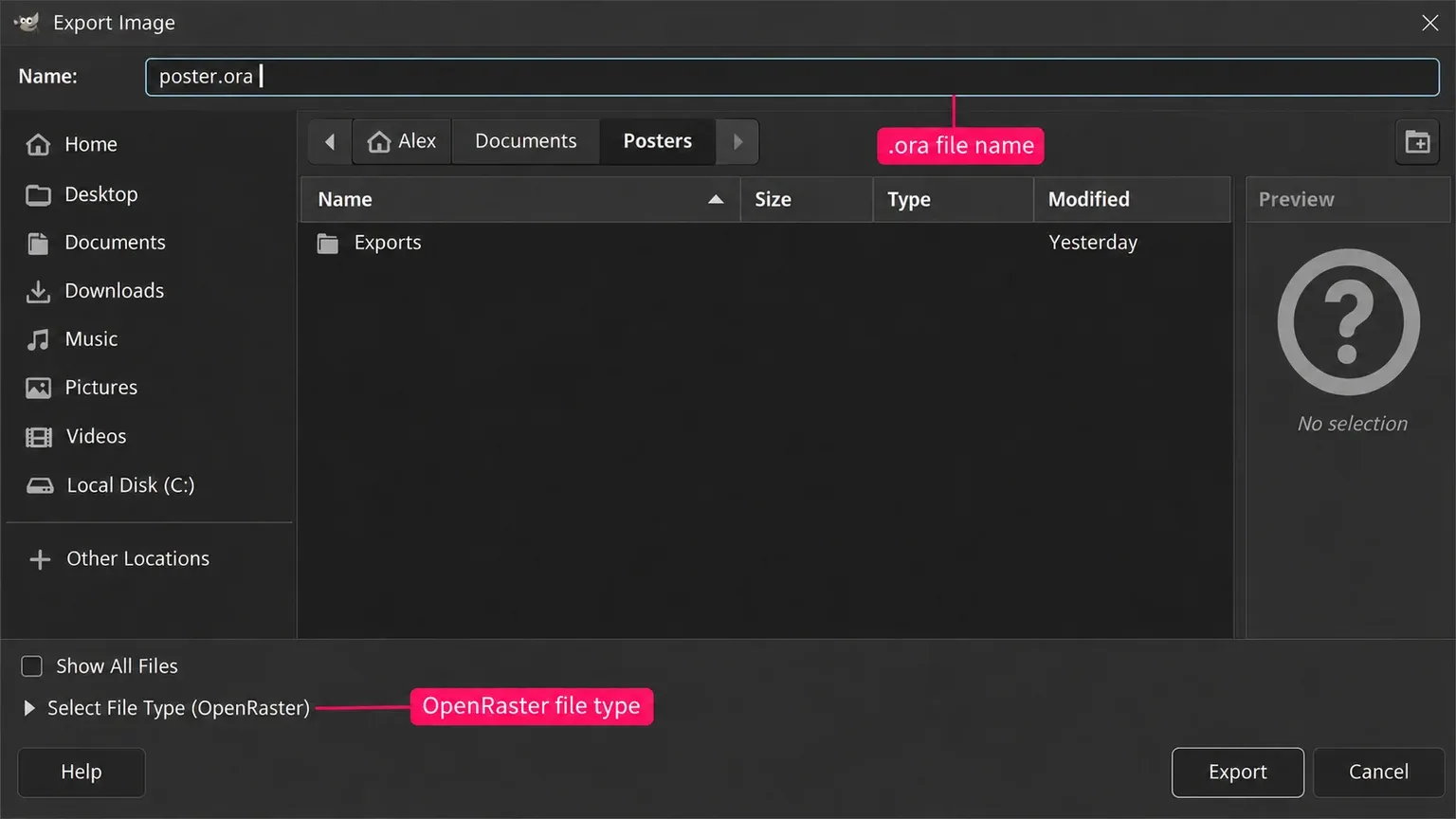
- Choose an exchange route for the task. PNG is enough for a finished pixel image. For raster layers going to Krita, export a separate file with the .ora extension; OpenRaster stores layers as PNG images. Keep the XCF because native text, vectors and effect settings aren't guaranteed to remain editable through that route.
- Inspect appearance and structure separately. Compare the canvas size, transparency, masked edges, blend modes and colour appearance against the reference. Then try changing the text, adjusting the mask and revisiting the correction. Seeing the right picture is only the first check.
- Save in the destination's working format, close and reopen. Use KRA for a Krita painting, PDN for a Paint.NET project, .af for current Affinity or PSD for the required PSD workflow. Check the actual file in the recipient's application before moving the rest of a collection.
Inventory plug-ins and scripts separately from documents. Even GIMP 3 broke compatibility with GIMP 2.10 plug-ins and scripts; another editor won't inherit those workflows just because it imports the picture. Decide which tasks need rebuilding before retiring the old setup.
When updating or simplifying GIMP is the better choice
I'd stay with GIMP when the layer structure, masks and export already suit the work and the frustration comes from one control or an old assumption. GIMP 3.2 adds linked and vector layers and further develops non-destructive filters. It can also use filters on an empty pass-through group to affect layers below, providing an adjustment-style workflow. That is a meaningful change from comparisons written around GIMP 2.10.
For a less crowded canvas, press Tab to hide the side panels, then press it again when you need the tool options or layers. Windows > Single-Window Mode keeps open pictures in one window with image tabs. Try that arrangement before replacing an editor whose tools already fit.
GIMP 3.2 also protects text, link and vector layers from accidental destructive painting: you must first choose Rasterize in the Layer menu. The Revert Rasterize command restores the non-destructive layer, but clears the destructive edits made after rasterising. Keep a separate raster copy when you need both the editable original and those painted changes.
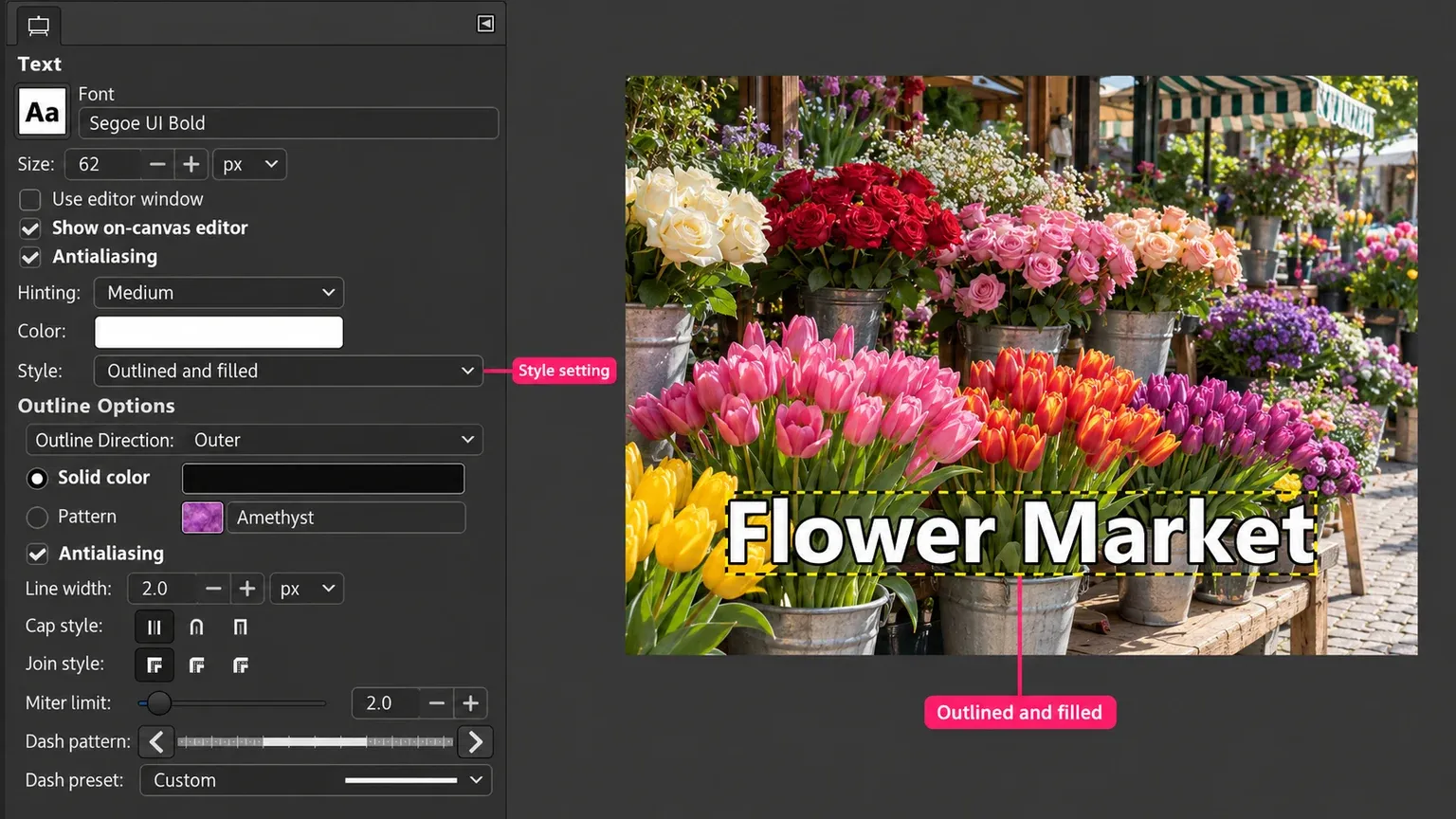
For an outlined caption, the Text tool's Style choices include Filled, Outlined, and Outlined and filled. Try that control before transferring an entire poster to another application just to draw a border around its words; the text outline guide covers the settings.
For a specialist effect, investigate a maintained GIMP 3 plug-in before moving the full project. That is worthwhile when the extension solves a defined task and supports your operating system and GIMP version; adding plug-ins without a clear need only adds maintenance.
Choose the candidate that passes your real editing and handoff checks, then move one project through it completely. Keep GIMP available until the new working file can be reopened and revised. If staying gives you the cleaner route, the getting started hub points to installation, updating and the core GIMP workflow.
Elena Morris
Elena Morris is the GIMP image-editing and compositing editor at TheGIMP.net. She writes about selections, masks and layers, restrained retouching, compositing and export.