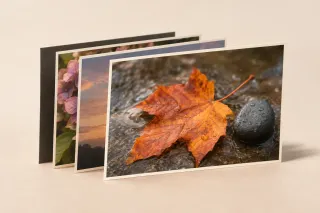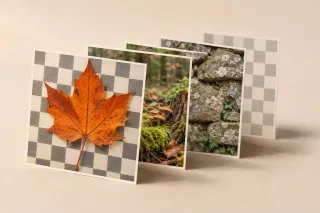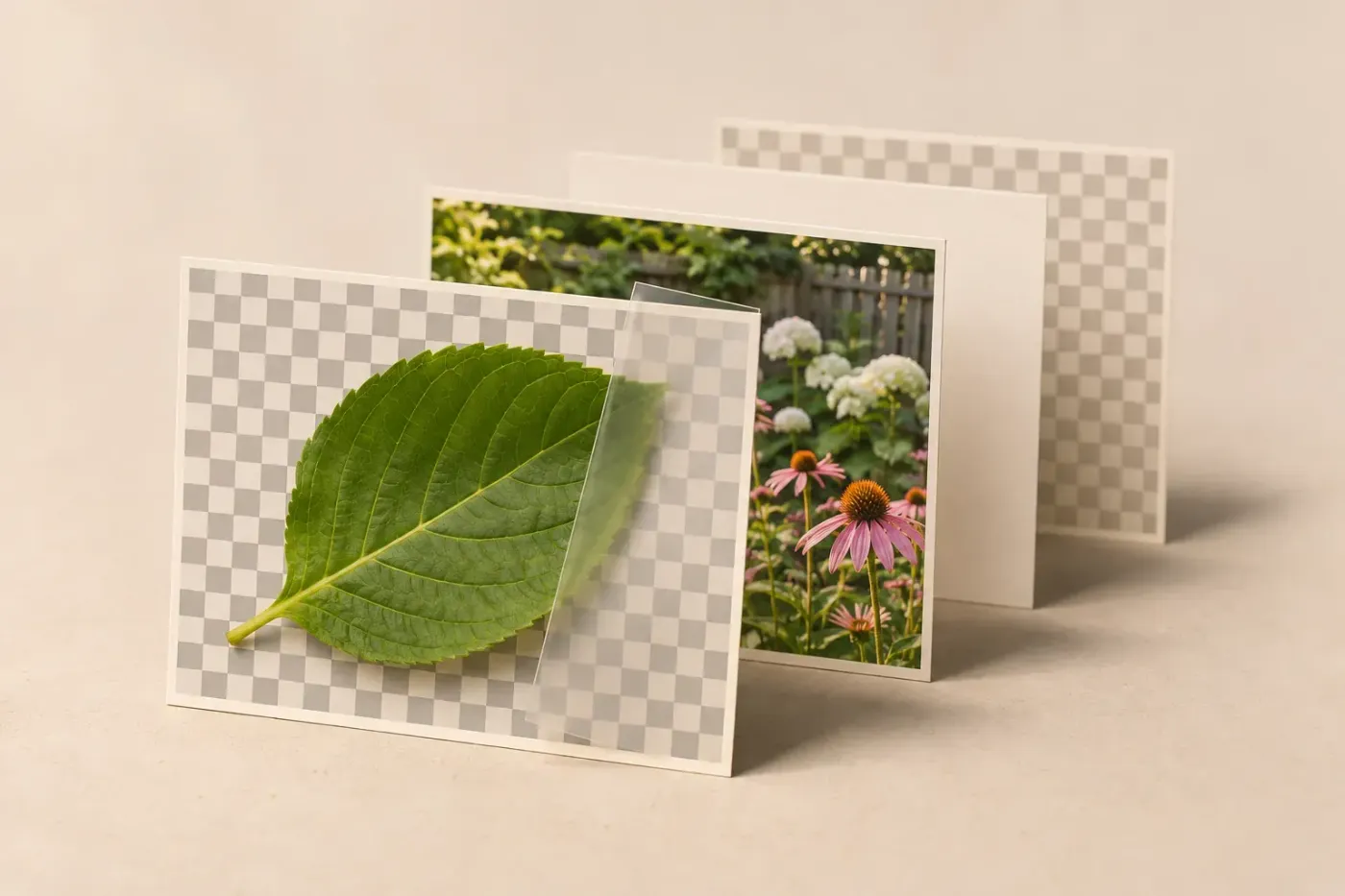
Layers and text
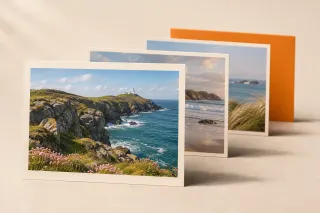
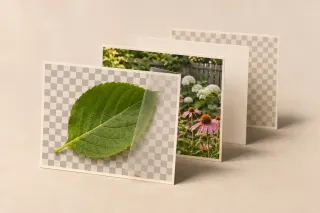
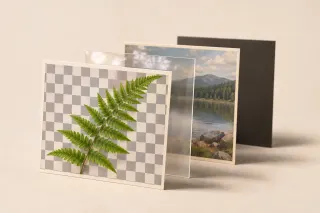
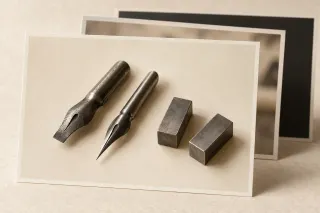
Build a GIMP composition with deliberate layer targets: add an image, move or align it, change the canvas and combine layers when the output calls for it. I'd keep an XCF master with text and masks intact before merging or flattening a delivery copy.
Choose your next step
Build the composition
- Layers and text
Merge layers in GIMP: Merge Down, Visible or Flatten
Choose the merge that matches the result, with clear checks for hidden layers, off-canvas pixels, blend modes and the XCF master.
- Layers and text
Align layers in GIMP 3.2: centre, edges and spacing
Make the moving layers, anchor points and reference explicit, then check visible padding and spacing without flattening the composition.
- Layers and text
How to cut and paste an object in GIMP 3
Transfer a selected object between images while preserving the source, then check its position, edges and final export.
- Layers and text
GIMP Move tool moves the wrong layer: fix the target
Make the target explicit in the Layers dialog, then diagnose selection mode, locks and multiple-layer movement.
- Layers and text
Change GIMP canvas size without stretching the image
Add a border, reveal an off-canvas layer or set exact dimensions while keeping the picture’s pixels and editable structure intact.
- Layers and text
Use a layer mask in GIMP to hide, reveal and blend
Add and paint a GIMP layer mask, turn a selection or image into one, blend photos and keep the right pixels editable through export.
- Layers and text
Resize one layer in GIMP and keep the canvas unchanged
Scale an inserted photo or logo by pixels, percentage or corner handles, then position it without resizing the whole image.
- Layers and text
Change the font of existing text in GIMP
Change a whole caption or one word, understand layer defaults and character formatting, recover rasterised text safely, and check the finished export.